
Setup Guides
Choose your device below to view easy step-by-step instructions.
Get started in less than 5 minutes.
Subscribe to our 12-Month Plan today and get the Ibo Pro Player completely FREE—saving you $11 fee!
Enjoy lightning-fast playlist loading, seamless channel switching, and effortless favorites tracking.
Ibo Pro Player
For All Devices
Firestick
Fire TV Stick/Cube
Android TV
Fire TV Stick/Cube
Android Mobile
Phone & Tablet
Samsung / LG
Tizen & WebOS
Apple / iOS
iPhone, iPad, ATV
PC / Mac / Web
Browser & Desktop
MAG / Portal
MAC Address
Ibo Pro Player Setup
Find the Correct Download Method
Visit https://iboproapp.com/ for device-specific video tutorials. To avoid incorrect versions, do not search the Google Play Store directly; strictly follow the official methods. (Below is a setup example for Android/Fire TV).

Get the Downloader App
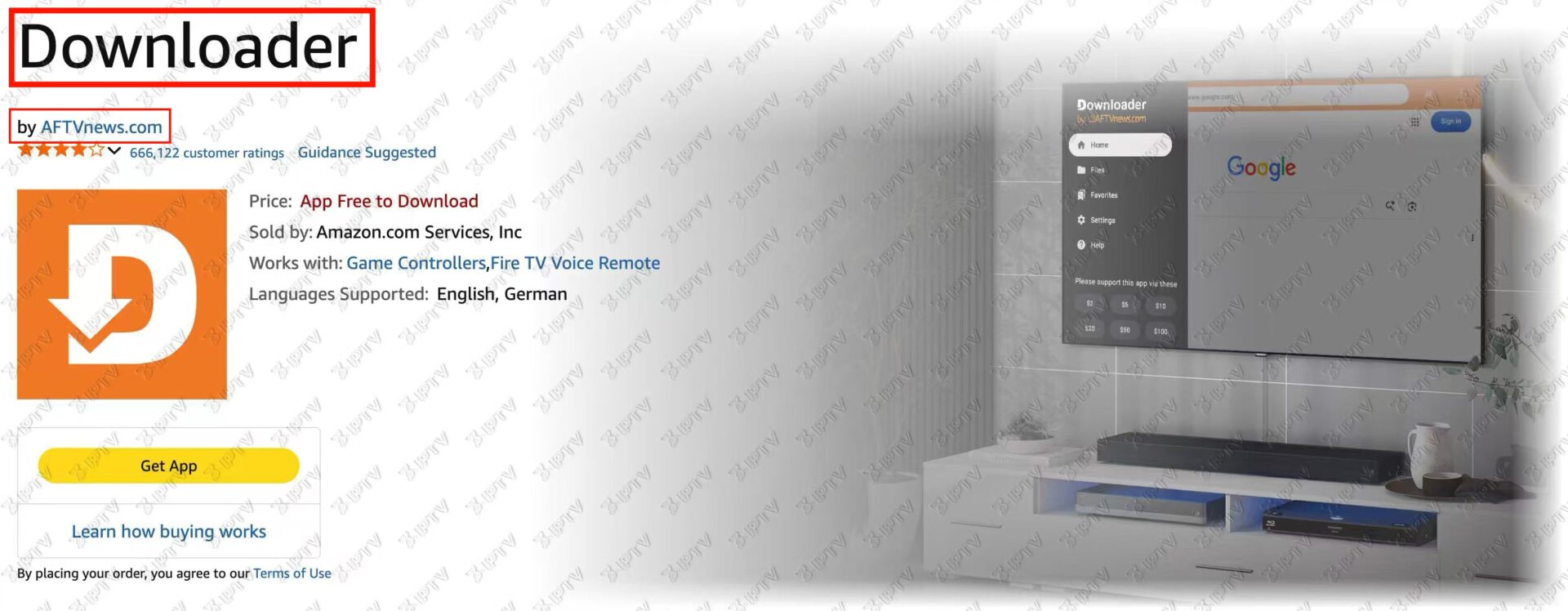
Search for the “Downloader” app (orange logo) in your Google Play Store or Amazon Appstore, then install it.
Enter the Download Code
Open the Downloader app, enter code 481220 in the URL box, and click Go. Wait for the file to download and install.
Wait for the file (IPTV Smarters Pro) to download and click Install.

Choose Your Login Method
Open Ibo Pro Player. You can log in using either of the following two methods:
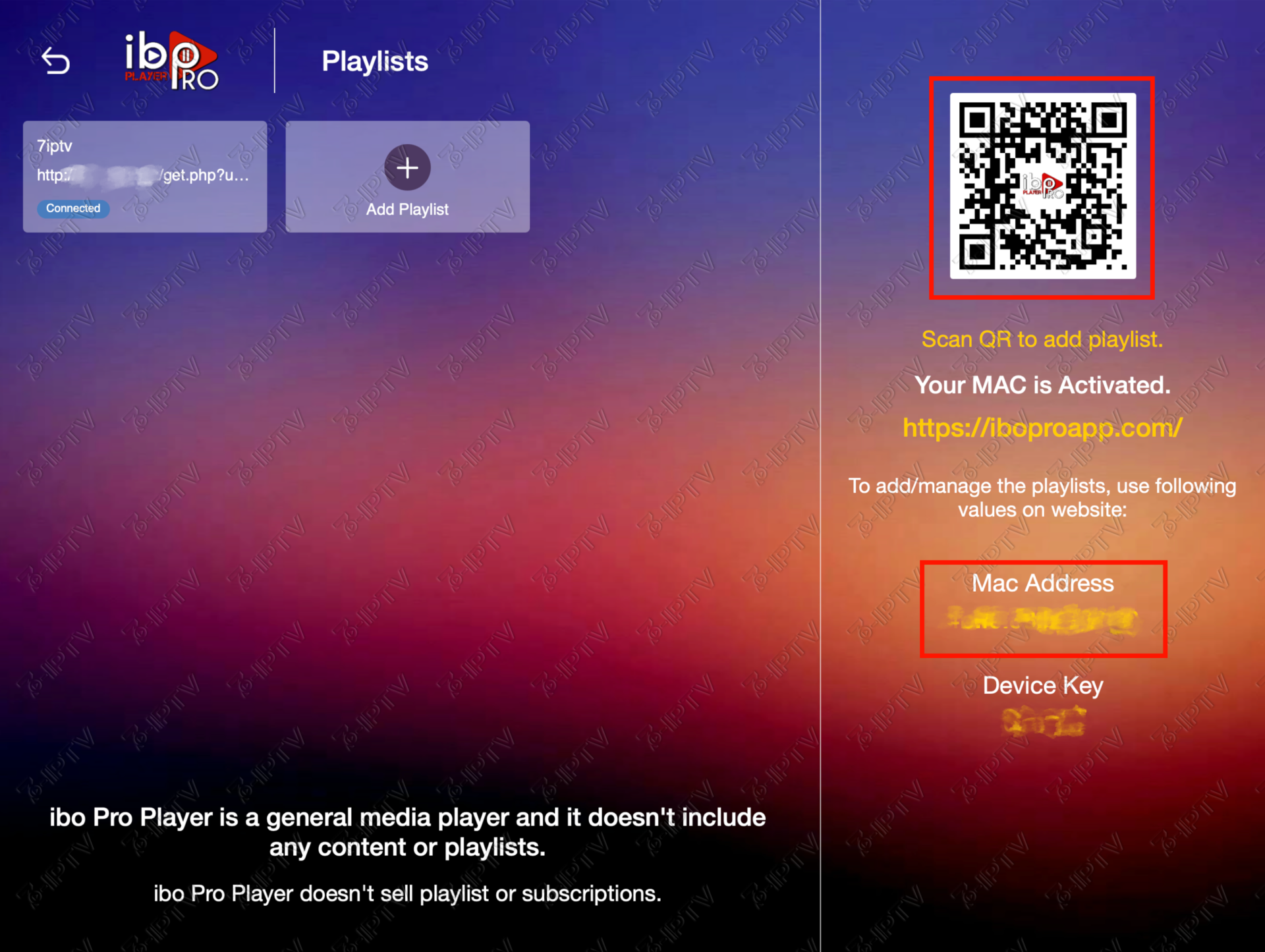
Method A (QR Code): Use your smartphone to scan the QR code on the screen to log in.
Method B (Xtream Codes): Click Add Playlist, select the Xtream-Codes-Api tab, and enter your subscription details (URL, Username, Password).
🎁 For 12-Month Subscribers:
Your MAC Address is displayed on this screen. Please send this MAC Address along with your email to our support team, and we will activate the player for you!
Log In & Add Playlist
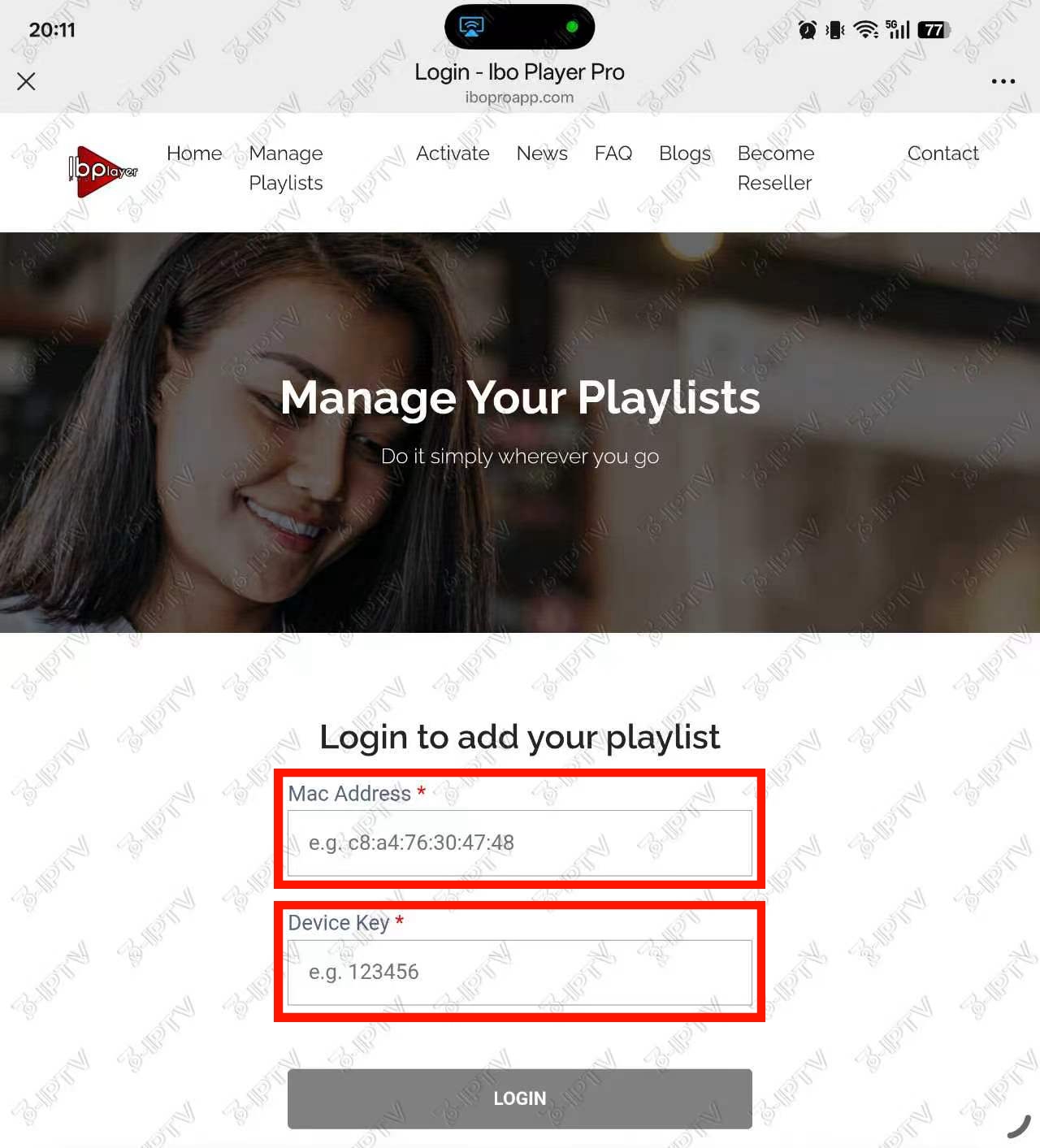
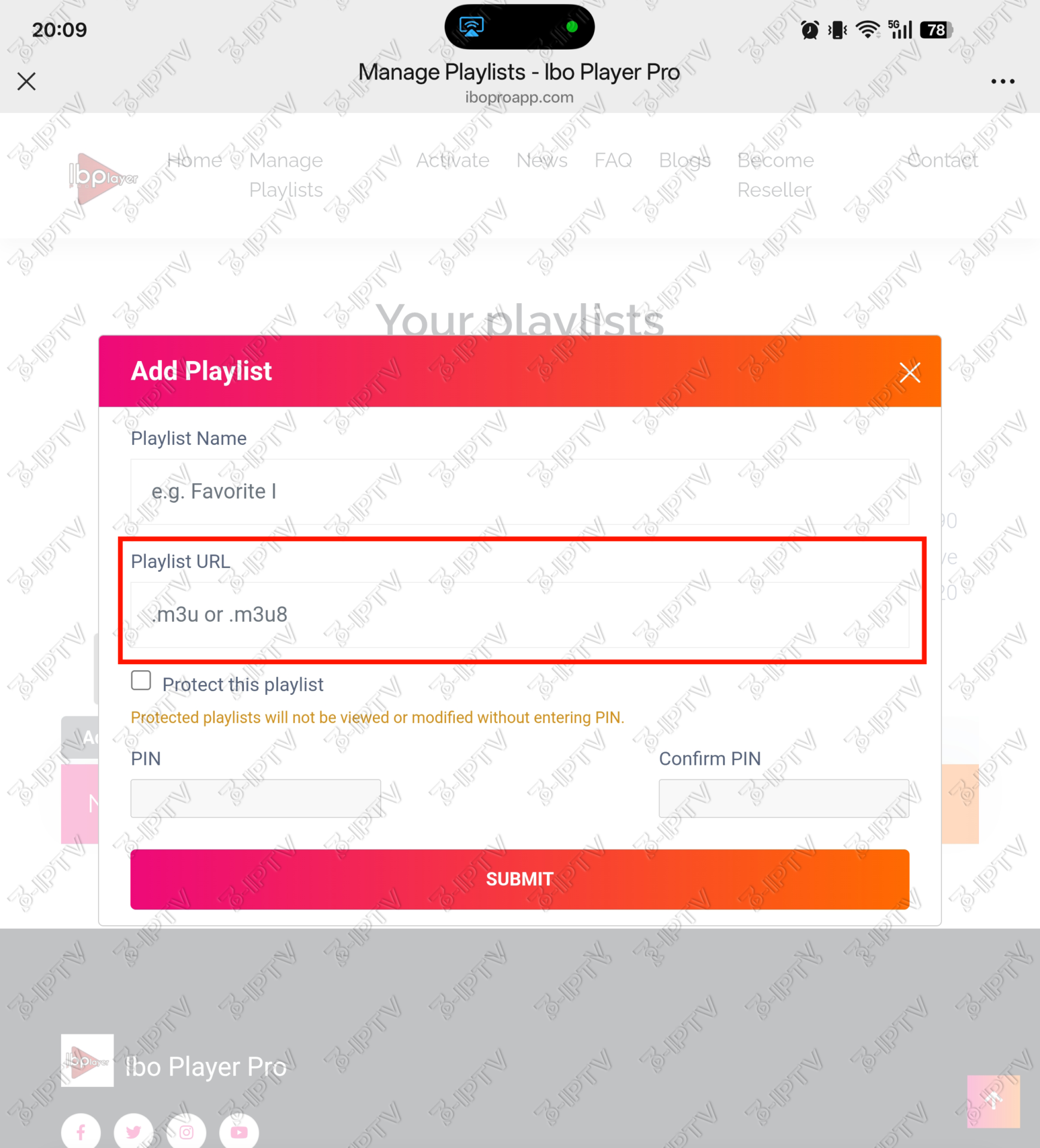
After scanning the QR code, log in using the MAC Address and Device Key shown on your TV. Click Add Playlist, enter a Playlist Name, and copy-paste the M3U link from your email into the Playlist URL field. Click Submit.
Restart & Watch
Restart the Ibo Pro Player app on your TV. Select Change Playlist to find the playlist you just added. Click on it to connect and start watching!
Amazon Firestick Setup
Get the Downloader App
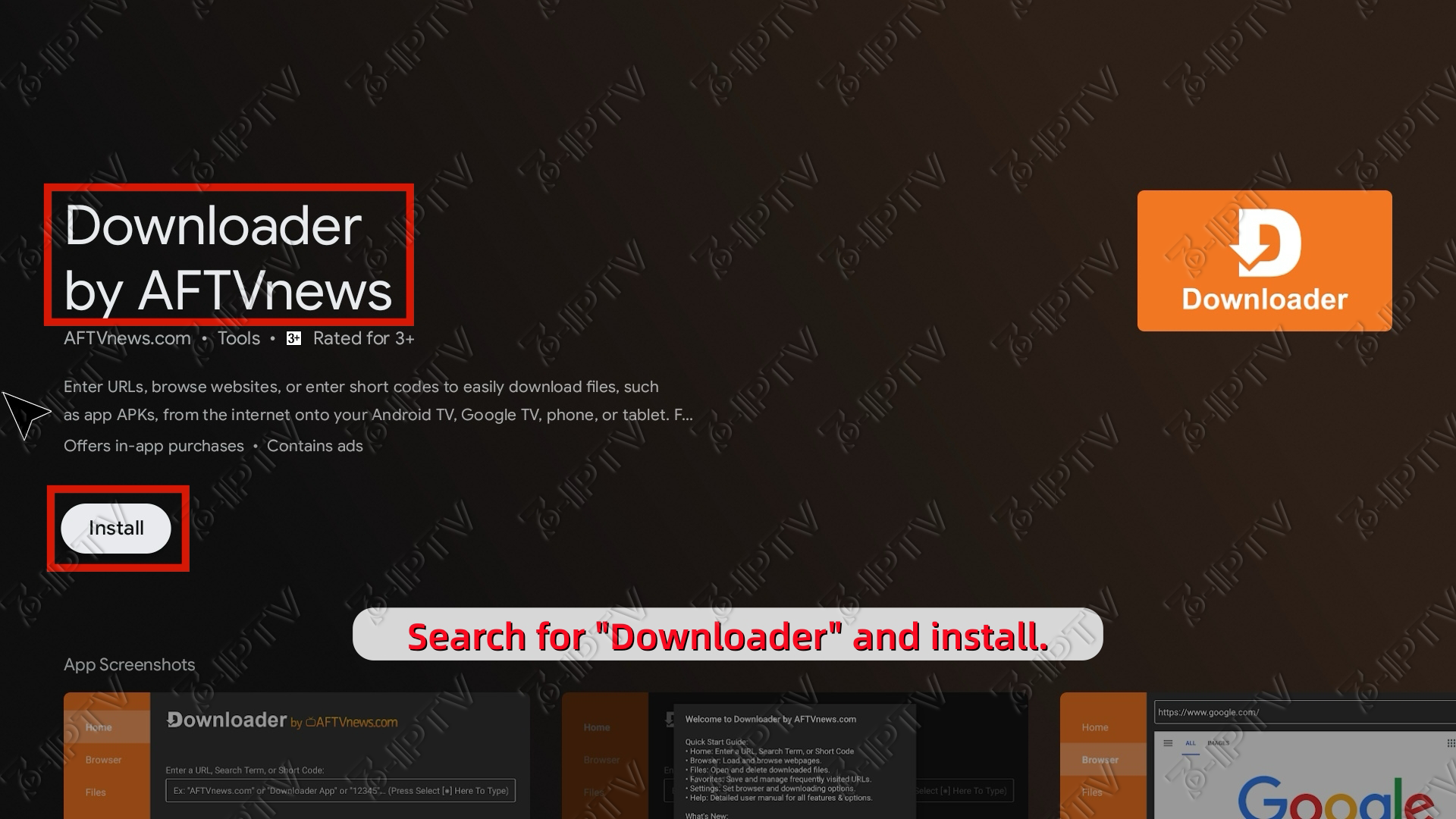
Enable Developer Options (Crucial)
- Go to Settings > My Fire TV > Developer Options.
- Turn ON “Install unknown apps” for Downloader.
💡 Hidden Developer Options? Go to “About”, select “Fire TV Stick”, and click it 7 times fast.
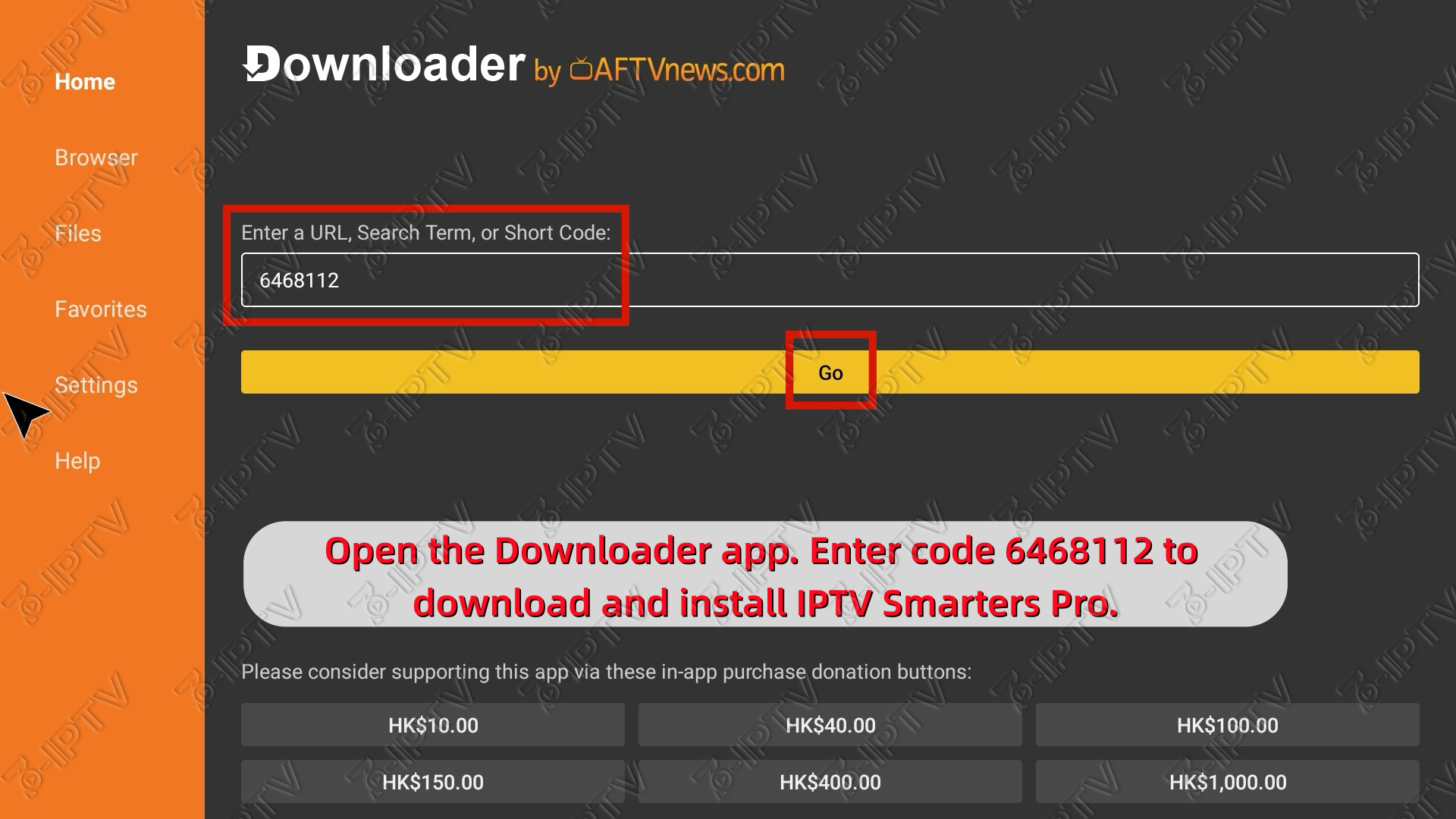
Enter Download Code
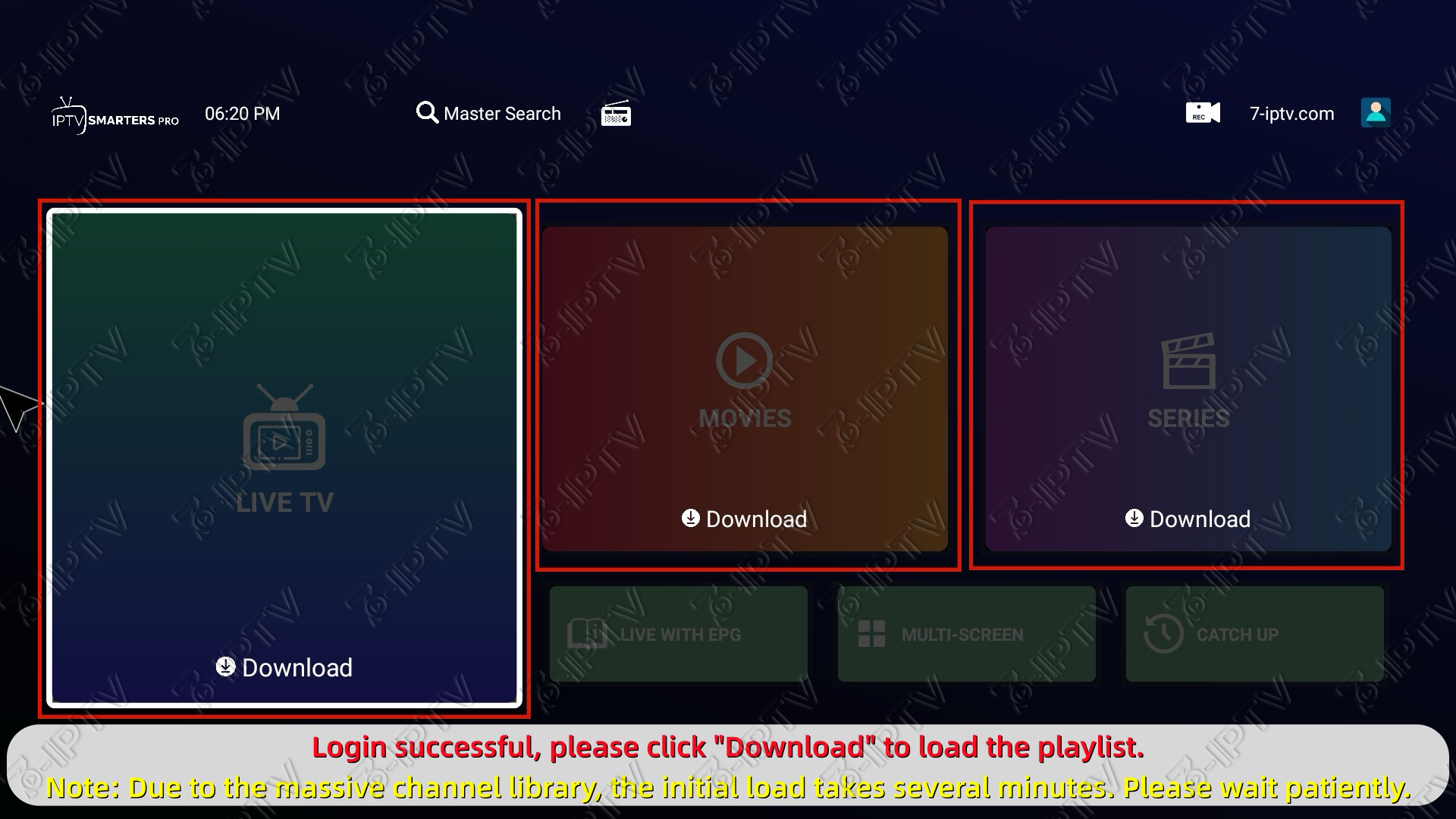
Wait for the file (IPTV Smarters Pro) to download and click Install.
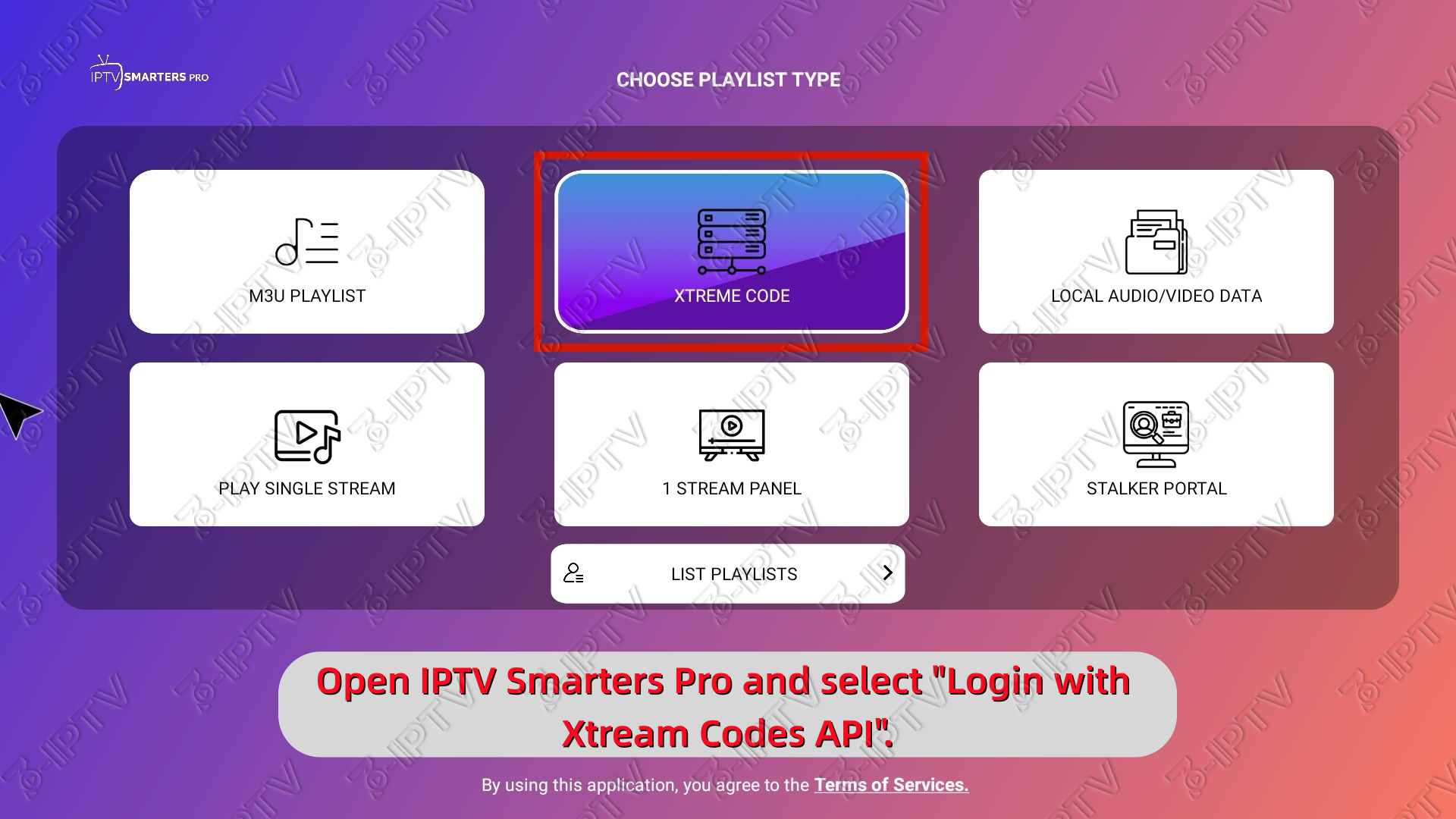
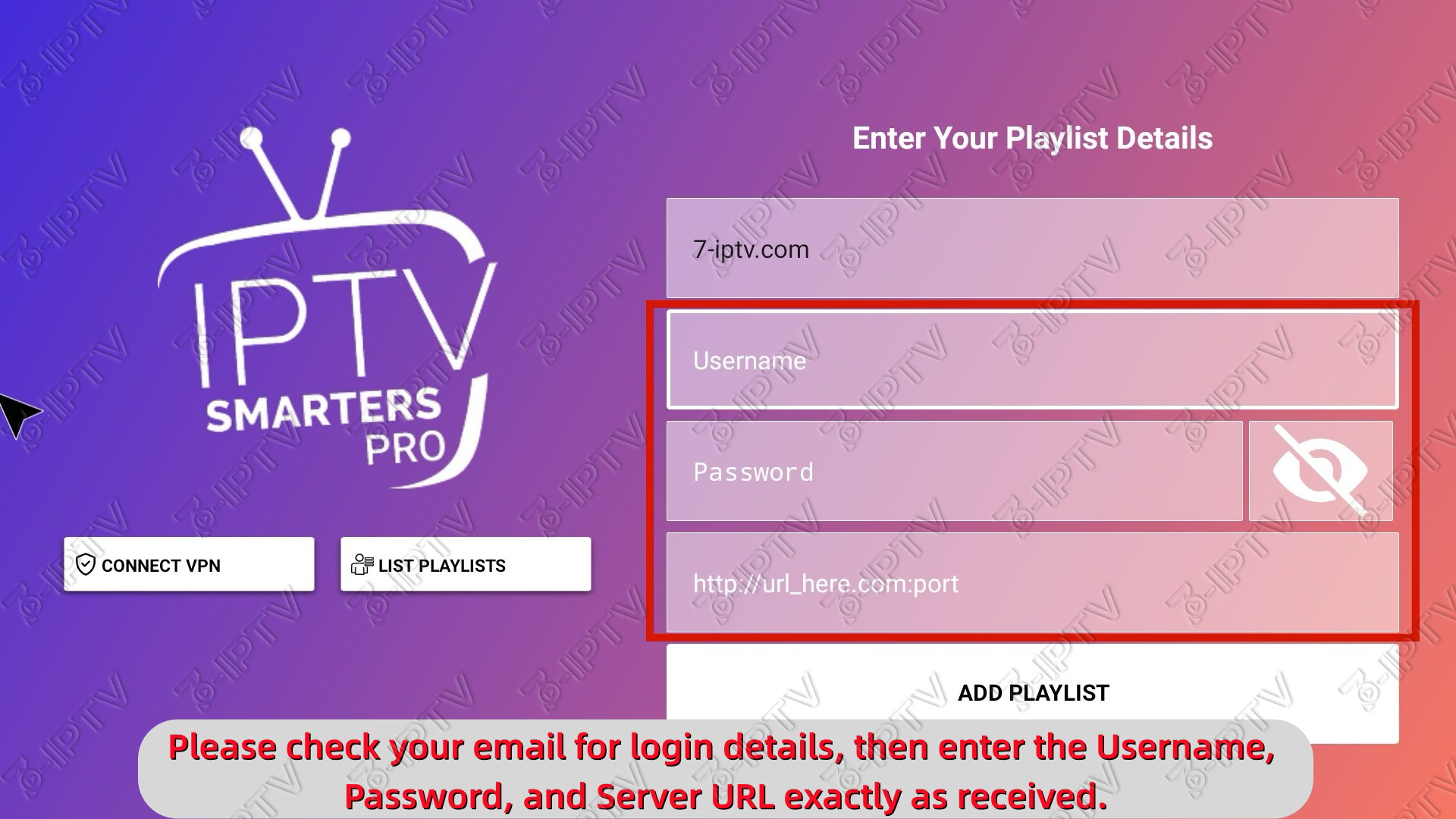
Login with your Details
Android Box / TV Setup
Compatible with Nvidia Shield, Xiaomi Mi Box, Chromecast, Onn Box, Sony, TCL, Hisense, and all Android TV devices.
Installation Guide (Official)
Get “Downloader” App
Open Google Play Store on your TV, search for “Downloader” (orange icon), and install it.
Enter Code
Open Downloader and enter this code in the URL box:
Wait for the file to download.
Install & Allow Permissions
Click Install.
⚙️ Note: If a security popup appears, click Settings ➜ Turn ON for Downloader ➜ Press Back ➜ Click Install again.
Login
Open the app, select “Login with Xtream Codes API” and enter your login details.
Android Phone / Tablet Setup
No need for Downloader. Simply use your browser.
Download APK Directly
Open Chrome (or any browser) on your phone and go to this official link:
Install & Allow Permissions
Open the downloaded file. If prompted, allow your browser to “Install from Unknown Sources” in settings. Then click Install.
Login
Open the app, select “Login with Xtream Codes API” and enter your details.
Samsung (Tizen) & LG (WebOS) Setup
They strictly block 3rd-party installations. You cannot install APK files via USB or Downloader. You must download apps from their official Content Store.
Install a Premium Player
Search for and download one of the following recommended premium players directly from your TV’s official App Store:
- Ibo Player Pro (Recommended)
- Smart One
- Flix IPTV
- Nanomid
Activate Your Playlist (DIY)
- Open the app on your TV. Write down the Device ID (MAC) and Device Key shown on the screen.
- On your phone or PC, go to the app’s setup website (e.g., for Ibo Player Pro, visit: https://iboproapp.com/manage-playlists/activate/).
- Log in with your Device ID and Key, then paste the M3U URL we sent to your email.
- Click Save, then Restart the app on your TV to load the channels.
IOS / Apple TV Setup
Download App
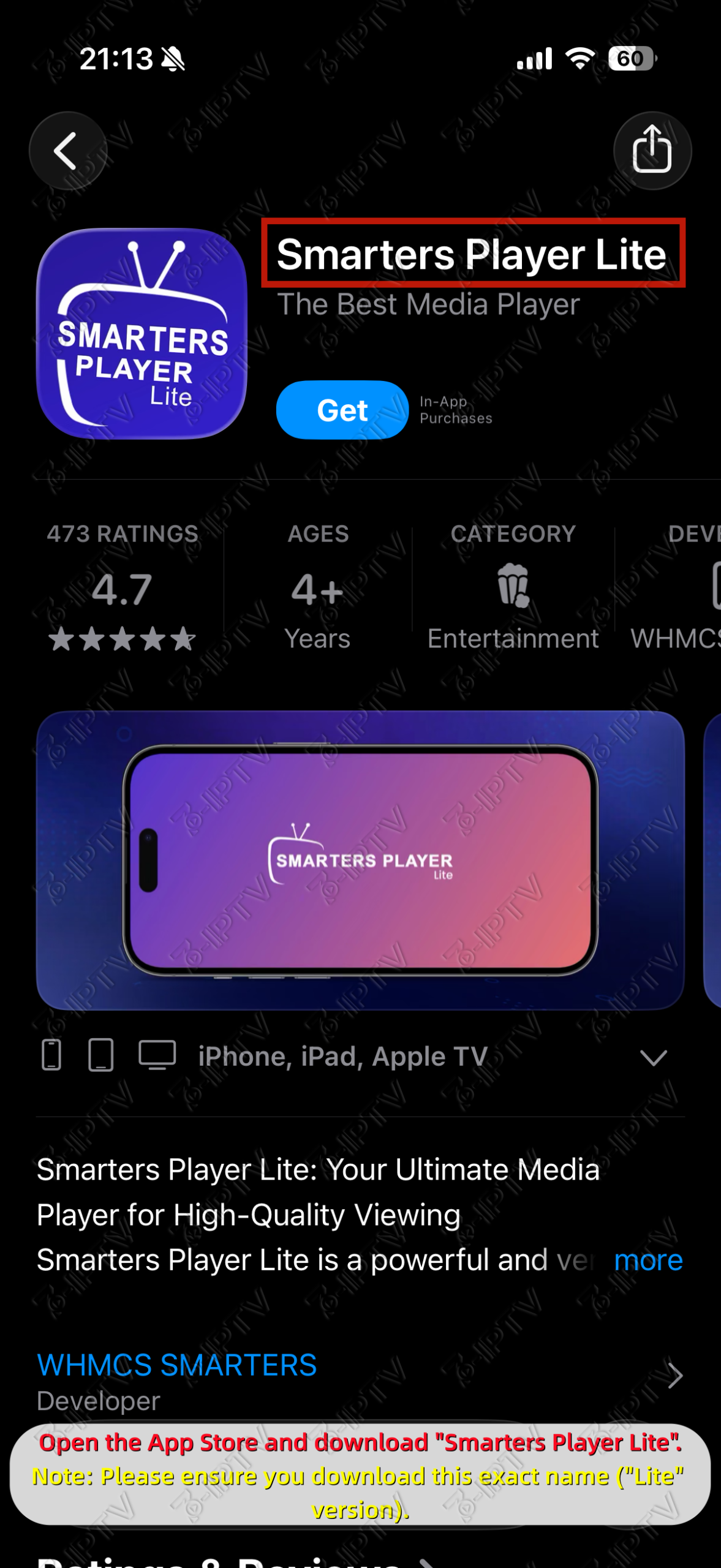
Go to the App Store and search for “Smarters Player Lite”.
Login
Open the app, select “Xtream Codes API”, and enter your login details.
PC & Mac Setup
Login
For App: Select “Login with Xtream Codes API”.
For Web Player: Simply enter your Username, Password, and URL on the login screen.
MAG & MAC Devices Setup
For MAG Box, Formuler, BuzzTV, Smart STB, STB Emu, and all devices using a MAC Address.
Enter MAC Address at Checkout
Find the MAC address (starts with 00:1A:79…) on the bottom of your box or in the device settings. When placing your order, simply enter this address into the “MAC Address” field on the checkout page.
Enter Portal URL on Your Device
Once your order is complete, check your email for your unique Portal URL. On your MAG Box, go to Settings > System Settings > Servers > Portals. In the “Portal 1 URL” field, type the URL we sent you.
Restart Portal
Save your settings and return to the main menu. Click “Reload Portal”. Your channel list will load automatically.
Still Need Help?
If you’re having trouble setting up your device or have any questions, our support team is ready to assist you.
Contact Support